> For the complete documentation index, see [llms.txt](https://wiki.pokkt.com/llms.txt). Markdown versions of documentation pages are available by appending `.md` to page URLs; this page is available as [Markdown](https://wiki.pokkt.com/pokkt-sdk/pokkt-admob-adapter-integration-guide-v8.2.0-android.md).
# Pokkt AdMob Adapter Integration Guide v8.2.0 Android
#### Step 1: Getting Started
The following instructions assume you have already integrated Google Mobile Ads SDK into your application.
#### Step 2 :Project Configuration
Add PokktSDK\_v8.2.0.aar to your project app/libs folder and add the following line in your app level build.gradle file.
dependencies {
implementation fileTree(include: \[‘PokktSDK\_v8.2.0.aar'], dir: ‘libs');
}
#### Step 3: Adding Your Application to Your Pokkt Publisher's Account
* Create Account and log-in at [http://www.pokkt.com](http://www.pokkt.com/)
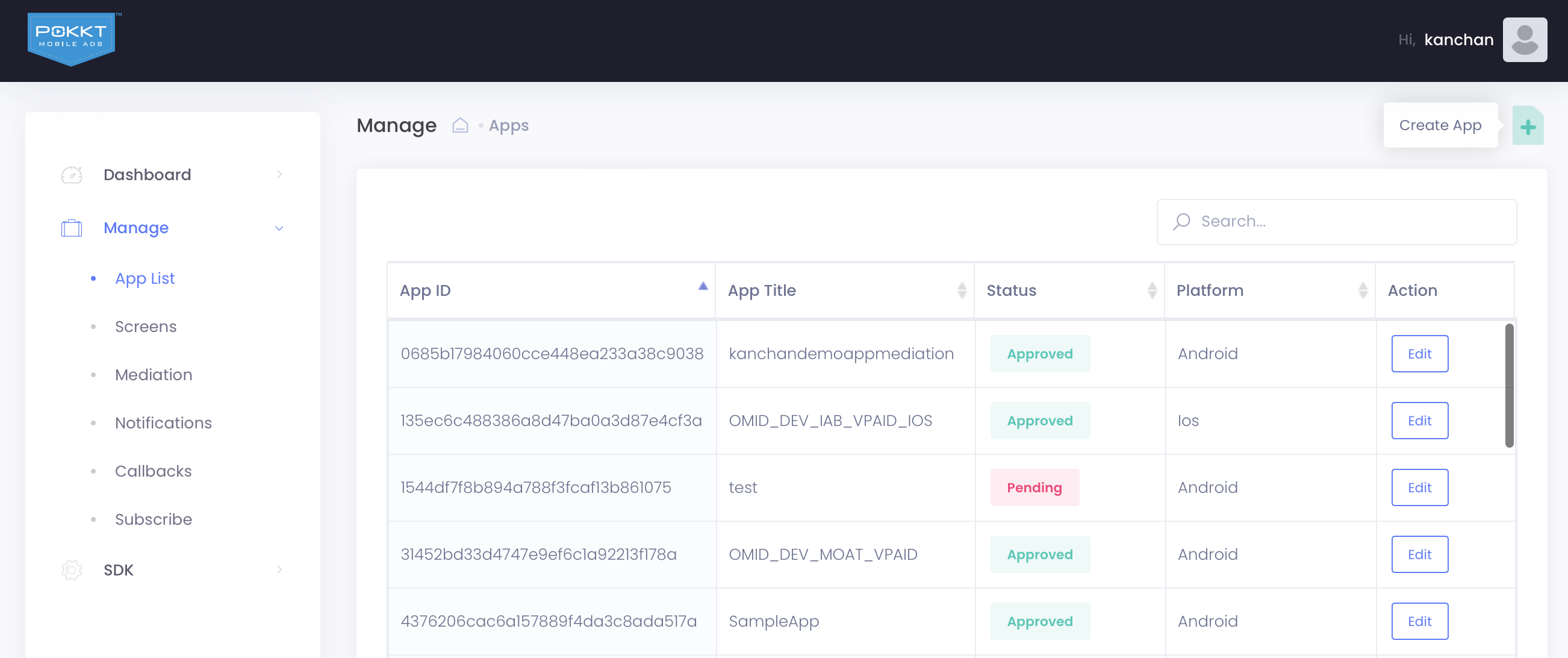
* Add your application and get its application Id and Security key.

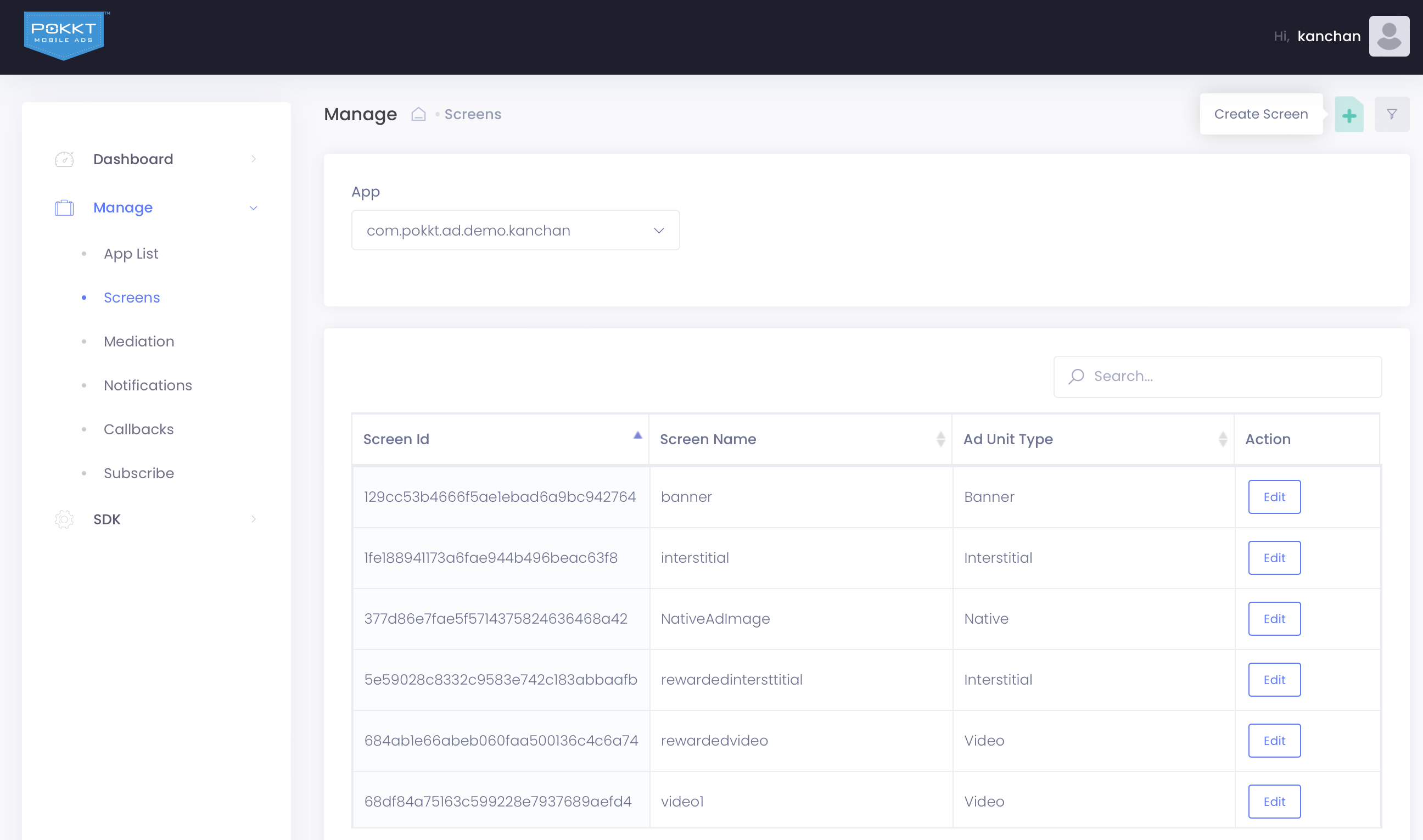
* Create Screen Ids to be used in AdMob dashboard to set ad source.
ScreenId is accepted by almost all API’s of Pokkt SDK. This controls the placement of ads and can be created on Pokkt Dashboard.
Developer needs to create screens in Pokkt Developer account.

#### Step 4: Adding a Custom Event
1. Sign in to your AdMob account at [https://apps.admob.com](https://apps.admob.com/).
2. Under All apps on the left navigation, select the app you want to update.
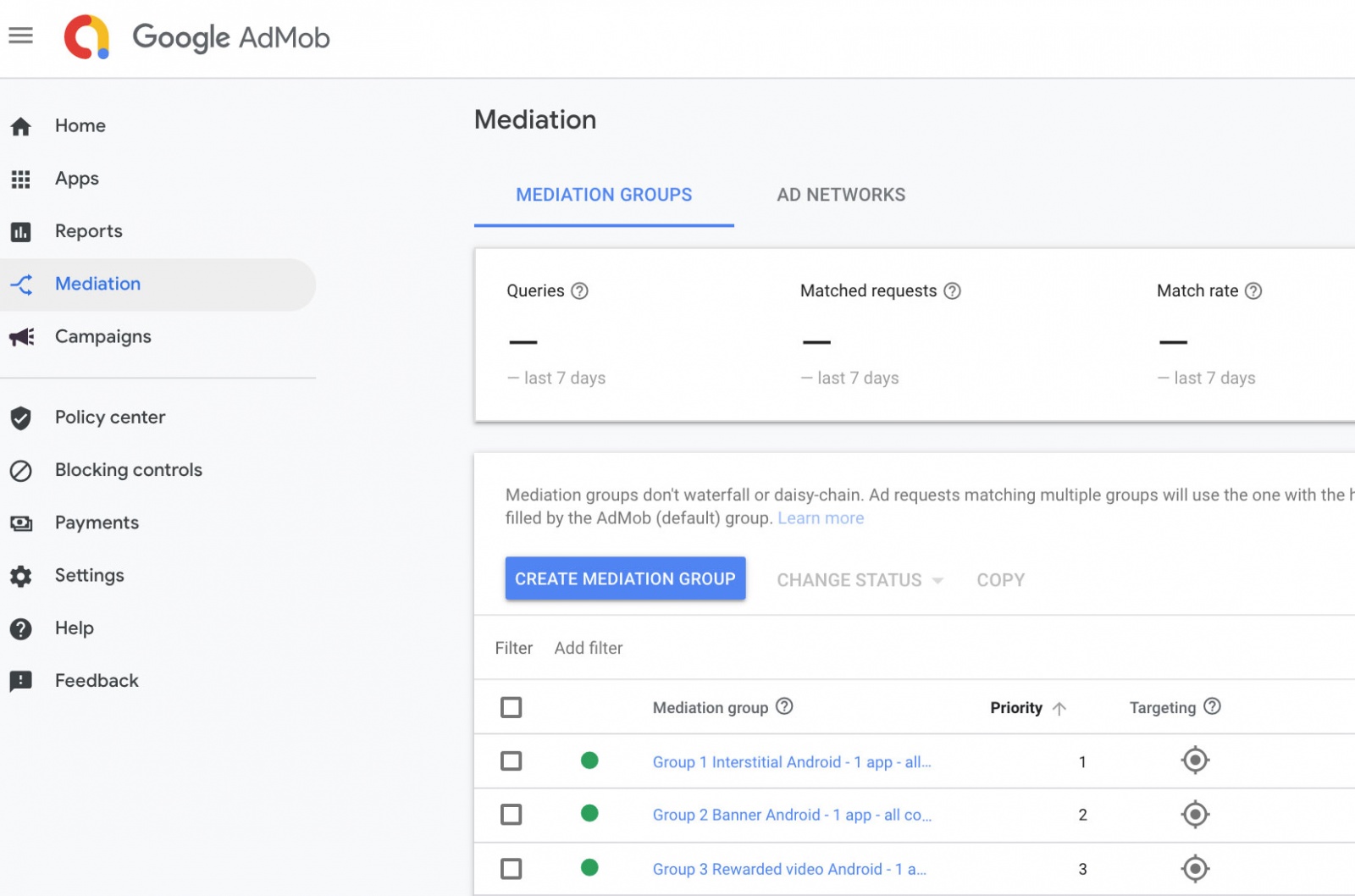
3. Click Mediation on the left navigation menu item.
4. Select the mediation group to which POKKT should be added.
5. Click Custom event under AdSources, and provide the following details:
* Label: Enter the name for the custom event. This is used in reporting and cannot be changed later.
1. Click Continue and Add class name and Parameters.
* Class Name(**Mandatory**): Enter class names as follows :
Rewarded Video: com.pokkt.wrapper.thirdparty.AdMob.PokktRewardedVideoAdapter
Interstitial : com.pokkt.wrapper.thirdparty.AdMob.PokktCustomEventInterstitial
Banner : com.pokkt.wrapper.thirdparty.AdMob.PokktCustomEventBanner
* Parameter : Enter a JSON string as below. **Screen, App Id and Sec key are mandatory**. Rest all are optional.
{
"SCREEN": "Screen ID Created on Pokkt Dashboard",
"APPID": "Pokkt App Id",
"SECKEY": "Pokkt App Security Key",
"TPID": "Unique user id(If exist) as in your app",
"RWD": "Virtual currency As per your App",
"DBG": false,
"GDPR": false
}

#### Step 5: Testing your application
Congratulation - that's it! You may now run your app and see Pokkt ads in action.
#### FAQ
* To use Pokkt AdMob adapter in Unity , add PoktSDK to your project’s Assets->Plugins->Android folder. PokktSDK Unity Plugin is not needed for AdMob Mediation.
* If your project uses GDPR, Please refer for understanding. Pokkt Solution adheres to GDPR requirement as per AdMob doc.GDPR consent must be taken by publishers before calling any ad related api. Add UMP as a dependency in your project’s app level build.gradle file.
dependencies {
implementation ‘com.google.android.ump:user-messaging-platform:2.0.0’
}
* AdMob SDK version used: **20.3.0**
* It will take around 6 hours time to reflect the changes made in the AdMob dashboard.